


Print Master
3.11.13K Reviews
App Specs
- Version
- 5.21.1
- Updated On
- License
- Free
- Downloads
- 1,000,000+
- Developer
- ZHUHAI QUIN TECHNOLOGY CO.,LTD.
- Categories
- Tools
- Platform
- Android
Screenshots
 Analysis by AppCompare
I judge a printing app less by the novelty of its first successful job than by whether it earns a place in my routine. Print Master is a free tools app from ZHUHAI QUIN TECHNOLOGY CO.,LTD., and its appeal is easy to understand: it brings label printing into a phone-based workflow. The real question is whether that convenience remains useful after the first experiment, especially if printing is an occasional chore rather than part of your day.
Why the first week feels promising
At the beginning, the draw is practical. Instead of treating a label as a job that must wait until you sit down at a computer, you can prepare it on your phone and print when the need comes up. That can make a difference for someone organizing storage, marking supplies, or preparing items to identify later. The value is less about making printing exciting and more about reducing the small barrier between having an idea and producing a label.
My advice is to test the whole path early, not just the design screen: prepare a simple label, check how it looks on paper, and make sure your printer and phone work together in the place you plan to use them. A design that looks tidy on a bright phone display may need a second look once printed. Checking text size and contrast before committing helps avoid wasting label material, especially when you are producing a batch.
Where it can become a lasting habit
The strongest long-term use is likely to come from repeated, small jobs. Think of a household drawer that keeps collecting loose cables, or a set of containers that are difficult to distinguish at a glance. If you already reach for your phone to keep track of these tasks, preparing a label there can feel more natural than opening a separate desktop program. Print Master makes most sense when the need comes back often enough that a quick mobile workflow saves time each occasion.
It is less compelling if you print only once in a while or need carefully controlled, high-volume production. In those situations, a printer’s own software or a desktop layout tool may offer a more familiar route, and you may not benefit from adding another app to maintain. I would treat this as a handy companion to a compatible printing setup, not as a reason to buy equipment before confirming that the combination suits your needs.
Getting Started with Print Master
First things first, downloading Print Master is a breeze. It’s available on both Android and iOS, so no matter your device preference, they’ve got you covered. Once installed, the app greets you with a clean and intuitive interface. Even if you’re the least tech-savvy person, navigating through this app is as easy as pie.
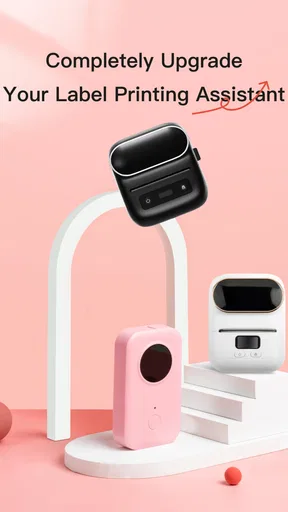
Setting up is straightforward. After a quick registration, you can connect your device to any nearby printer via Wi-Fi, Bluetooth, or even USB. What’s cool is that it supports a wide range of printer brands, so you’re not limited to just one or two.
Worth Reading Before You Choose

EA SPORTS FC Mobile 26 Is a Bigger Football Game, but It Takes Time

Flipboard Shows What News Apps Must Do Beyond the Feed

Switching to Android Auto Means Rethinking Your Driving Routine

Google Calendar Makes a Crowded Week Easier to Manage

Ludo King Makes the Most of the Minutes Between Plans

Baby Panda World Brings Quick Play to Modern Phones, but Its Game Library Feels Busy
A Suite of Features
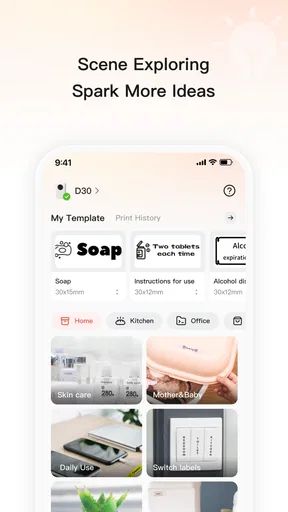
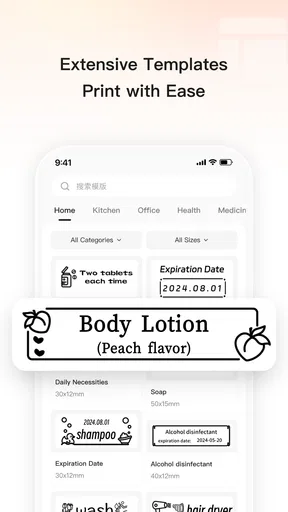
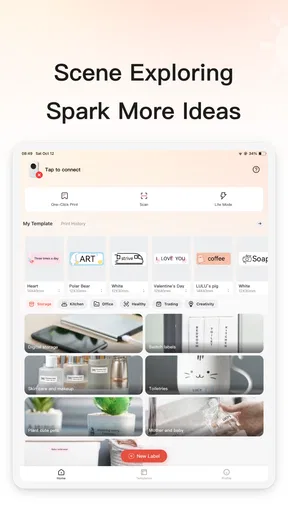
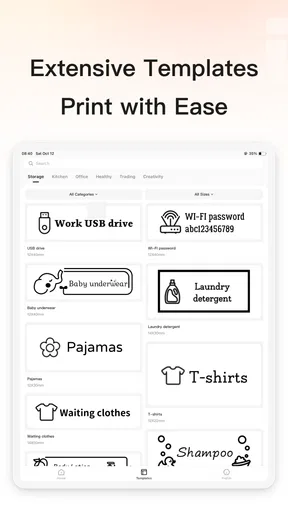
One of the standout features of Print Master is its versatility. Whether you need to print documents, photos, or even web pages, this app has got your back. And for those who love a good template, it offers a variety of preset options for printing everything from greeting cards to calendars.
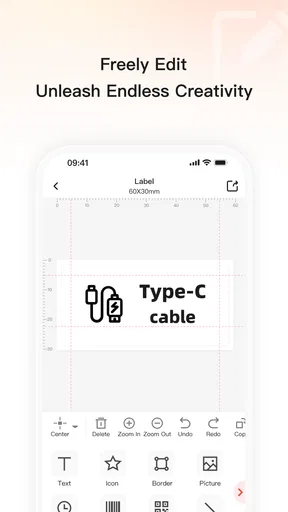
Another highlight is the editing tools. Before hitting that print button, you can tweak your document or photo directly within the app. Adjust the size, change the layout, or even add some funky filters to your photos. It’s like having a mini photo editor and document manager all rolled into one.
Make each print earn its place
A useful way to judge the app is to keep a small, recurring job in mind rather than opening it only when a large project appears. For example, if you sort a cupboard on a weekend, draft labels for the categories you actually use, then print only after checking that the wording is clear at the size you need. This avoids the common trap of spending longer decorating a label than it takes to find the item later. A plain, readable result is often more useful than an elaborate one.
For a small business or a busy household, it can also help to settle on a consistent naming style before making a batch. Keep labels short, use the same terms for related items, and check spelling as a group. That little bit of planning matters because mobile editing is convenient for quick changes, but repeated corrections can turn a supposedly fast job into a fussy one. I would make one sample first whenever the label will be used on many items.
Performance and Reliability
Now, let’s talk about performance. I tested Print Master with a couple of different printers, and the connection was seamless every time. There were no annoying dropouts or endless buffering. The documents printed quickly, and the quality? Top-notch. The app handles everything from simple text documents to high-resolution images with ease.
Battery consumption is always a concern with apps running in the background, but Print Master is surprisingly efficient. It didn’t drain my phone’s battery, even after extended use, which is a massive plus in my book.
What to check when a job goes wrong
Printing depends on the phone, the printer, and the connection between them, so a smooth first session should not be taken as a guarantee that every setup will behave identically. If a printer does not appear, I would first check that both devices are ready to communicate using the same connection method, then try a simple test job before spending time on a detailed layout. This is a more useful troubleshooting habit than repeatedly changing the design when the real issue may be the connection.
Compatibility is the question I would answer before relying on the app for a deadline. The listing describes broad printer support, but that does not mean every model or connection path will work in every setting. If you need a guaranteed print for school, work, or shipping, test your exact printer beforehand and keep its built-in option as a fallback. That is not a knock on the app; it is sensible preparation for any phone-based printing workflow.
Keeping the workflow manageable
Mobile editing is most valuable when it removes steps, not when it encourages endless tweaking. I would use the editing tools to correct practical problems such as an awkward layout or text that needs resizing, then stop once the label is legible. For photos or decorative designs, previewing the result carefully matters even more, because a phone screen can make colors and detail look more forgiving than a printed surface.
Print Master is free to download, though it offers in-app purchases ranging from $0.49 to $39.99 per item. That makes it worth paying attention to any purchase prompt and deciding whether the free workflow already covers your needs before spending. It is rated for Everyone, and its average rating is 3.3 from 5.9K ratings, with 1K reviews; it has over 1 million installs. Those figures suggest it has found an audience, but they are not a substitute for checking whether it works with your printer and your particular routine.
Security and Privacy
In today’s digital age, security is paramount. Print Master takes this seriously, offering encrypted connections to ensure that your data remains private. Whether you’re printing sensitive documents or just some casual photos, you can rest easy knowing your information is secure.
For sensitive work, I would still keep the content and the setting in mind. Printing a personal document on a shared or unfamiliar printer involves considerations beyond the app itself, such as who can access the output once it leaves the device. When privacy matters, use a printer you control and collect the page promptly. That simple habit is useful no matter which mobile printing tool you choose.
Maintenance, fatigue, and alternatives
The day-to-day burden should be modest if you print occasionally: keep the app available, confirm that your printer is ready, and avoid letting an untested setup become essential at the last minute. The bigger maintenance cost is attention. If every job requires reconnecting devices, checking a purchase prompt, or rebuilding a design, the convenience can fade. I would keep a reusable, simple label style for recurring needs and avoid creating a collection of designs that are hard to distinguish.
Compared with a printer’s own utility, Print Master’s advantage is the prospect of handling a print job from the phone in a more flexible, design-oriented way. A manufacturer’s app may be a better choice when you primarily need dependable basic printing from one known device. A desktop tool is usually a stronger fit for intricate layouts or larger batches where precise control matters. Print Master sits between those approaches: useful when mobile access and quick preparation are the point, less persuasive when maximum control or predictable production is the priority.
The app is currently at version 5.17.1 and supports Android 7.0 or later. That gives Android users a clear starting point for checking whether their device meets the minimum requirement. For iPhone users, I would check the current store page on the device before planning a workflow, then test a real print rather than relying on a description alone. In either case, the best evidence is a successful sample from the printer you intend to use.
Final Thoughts
All in all, Print Master is a fantastic addition to your app arsenal, especially if you find yourself needing to print on the go. Its easy setup, robust features, and reliable performance make it a must-have. Whether you’re a student, a professional, or just someone who occasionally needs a quick print, this app caters to all.
If you’re ready to transform your mobile device into a portable printing powerhouse, give Print Master a try. You might just find it’s the app you never knew you needed.
My long-term recommendation is more measured: try it if mobile label preparation solves a recurring annoyance, and judge it by whether the second and third jobs feel easier than the first. It is a sensible choice for people who like organizing as they go and already have a suitable printer. If your printing is rare, your layouts are demanding, or your printer setup is unreliable, the built-in printer software or a desktop alternative may deserve the space instead. The app earns a lasting place when it saves a real step, not simply because the first print is satisfying.
Pros
- User-friendly interface for quick navigation.
- Wide variety of templates available.
- High-quality print output options.
- Supports multiple file formats.
- Offers cloud integration for easy access.
Cons
- Limited editing tools for advanced users.
- Requires a stable internet connection.
- Some features locked behind paywall.
- Occasional glitches with large files.
- No offline mode available.
FAQs for Print Master
What is Print Master, and what does it do?
Print Master is a versatile app designed for creating and editing print-ready documents and designs directly from your Android or iOS device. It offers a range of templates, fonts, and graphic tools, making it ideal for both personal and professional use, whether for crafting flyers, business cards, or creative projects.
Is Print Master user-friendly for beginners?
Yes, Print Master is designed with a user-friendly interface that caters to both beginners and experienced users. The app includes intuitive drag-and-drop features and provides tutorials and tips to help new users get started. Its simplicity doesn’t compromise on functionality, making it accessible to everyone.
What kind of templates and design elements does Print Master offer?
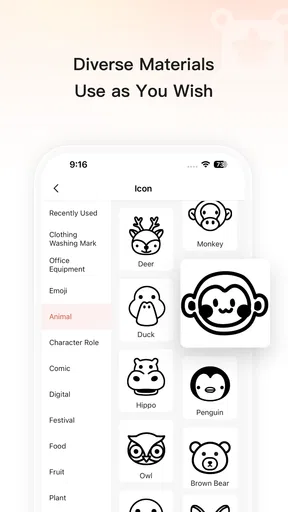
Print Master offers a wide array of templates for various needs, including business cards, flyers, brochures, and more. It also provides a rich selection of fonts, clipart, and customizable design elements. This diversity allows users to create professional-looking designs without needing advanced graphic design skills.
Does Print Master support multiple file formats for export?
Yes, Print Master supports exporting designs in multiple file formats, including PDF, JPEG, and PNG. This flexibility ensures that users can print their designs directly or share them digitally across various platforms. The app also offers options for adjusting resolution and quality to meet specific printing requirements.
Are there any subscription fees or in-app purchases in Print Master?
Print Master is available as a free download, but it includes optional in-app purchases and subscription plans. These provide access to premium features, additional templates, and exclusive design elements. Users can choose the free basic version or upgrade for a more comprehensive design toolkit.


